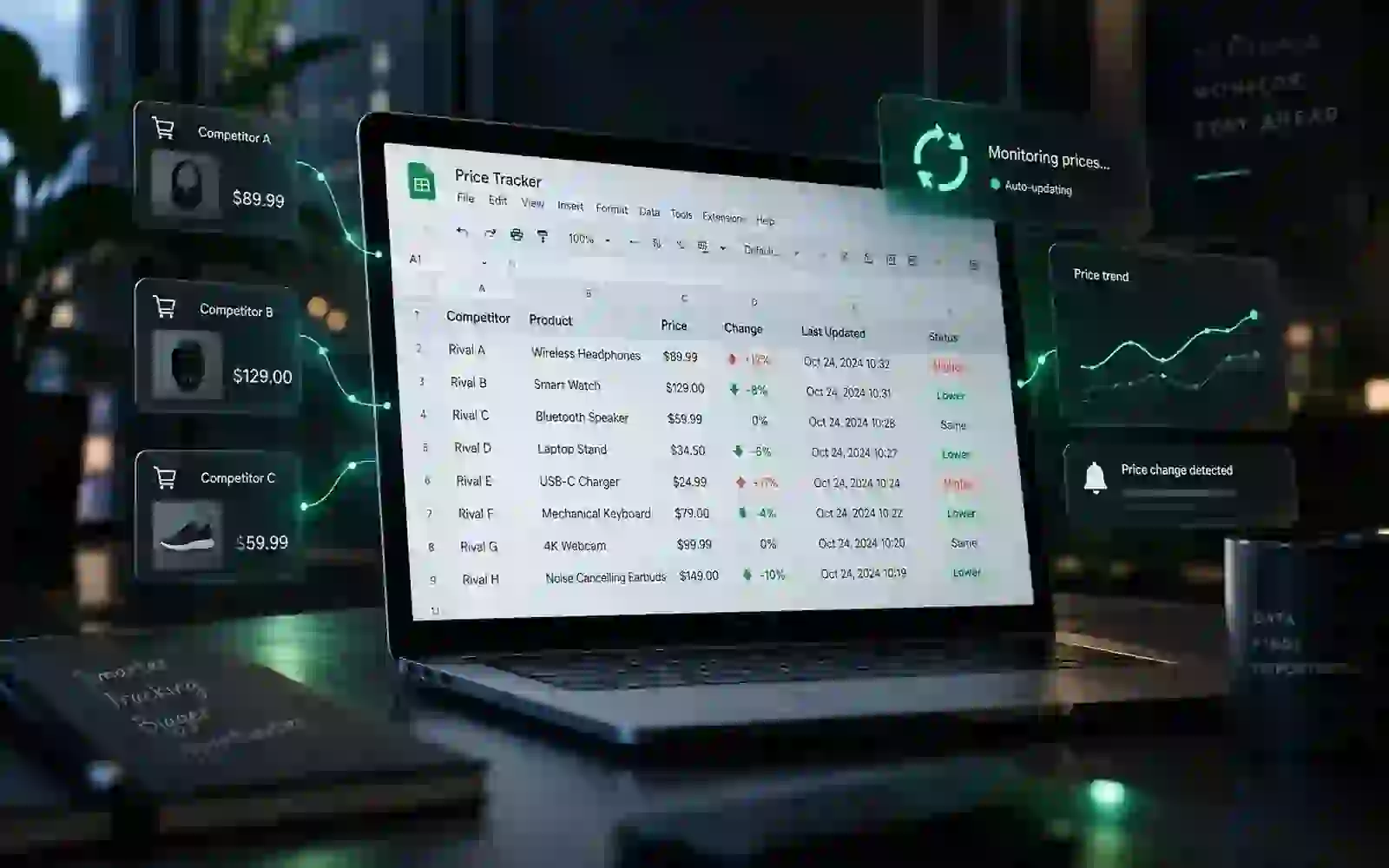
Checking competitor prices manually works when you have two products and plenty of time. It breaks down quickly when you need to watch several products, multiple competitors, or frequent price changes.
A simple alternative is to let a no-code web monitoring tool collect the price data for you and send it into Google Sheets.
In this guide, we’ll use Browse AI to capture product names and prices, schedule repeat checks, and sync the results to Google Sheets. No Python, scraping framework, or custom API is required.
Quick answer: Create a Browse AI robot for the competitor page, capture the product and price fields, connect the robot to Google Sheets, then add a monitor so the robot checks the page on a schedule. Browse AI can also sync only new or changed records, which helps keep the sheet useful instead of filling it with duplicate rows.
What you’ll build
By the end of the setup, you can have a spreadsheet that looks something like this:
| Product | Competitor | Price | Checked at |
|---|---|---|---|
| Product A | Store One | Illustrative value A | 2026-08-27 |
| Product B | Store One | Illustrative value B | 2026-08-27 |
| Product C | Store Two | Illustrative value C | 2026-08-27 |
The important part is that you are not copying those values by hand. Browse AI runs the extraction, while Google Sheets becomes the place where you review or analyze the results.
This works especially well for:
- small ecommerce teams tracking a few important competitors;
- agencies monitoring client markets;
- resellers watching common products;
- local businesses comparing published service prices;
- teams that want a lightweight price history without building a scraping system.
Who this is for
This setup fits small teams that need recurring visibility into a limited set of public prices without maintaining scraper code.
It works best when the target pages are reasonably stable, the number of sites is manageable, and a spreadsheet is sufficient for review and follow-up.
If you need high-frequency collection across a large catalog, complex authentication, or strict delivery requirements, use this workflow as a prototype rather than the final architecture.
What you need
You only need:
- a Browse AI account;
- a Google account;
- the URL of the page you want to monitor.
Verified Pricing Snapshot
Primary-source check: Browse AI’s official pricing and credit documentation was checked on September 2, 2026.
| Item | Current official position | Practical meaning |
|---|---|---|
| Free plan | 50 credits per month, 2 websites, 3 users, unlimited robots | Enough to validate a small monitoring workflow before paying. |
| Standard-site credit use | Up to 10 extracted rows per credit, with a minimum of 1 credit per task | Run frequency and extracted row volume both affect monthly usage. |
Monitoring and Google Sheets integration are available on the platform. Recheck the current official terms before relying on these limits for a production workflow.
For a small proof of concept, that may be enough. Larger catalogs or frequent checks can consume credits quickly, so treat the free plan as a way to validate the workflow rather than assume it will cover a large monitoring project forever.
Step One: Choose the right competitor page
Start with a page where the information you care about is visible in a predictable format.
A category or search-results page is often easier than opening dozens of individual product pages because one run can capture multiple rows.
For example, a useful page might show:
- product name;
- current price;
- sale price;
- availability;
- product URL.
Try to avoid collecting information you do not need. If your goal is price monitoring, product name, price, URL, and timestamp are usually enough.
Also check whether you are allowed to automate access to the site. Publicly visible information is not automatically permission to ignore a website’s terms, access rules, or applicable law.
Step Two: Train a Browse AI robot
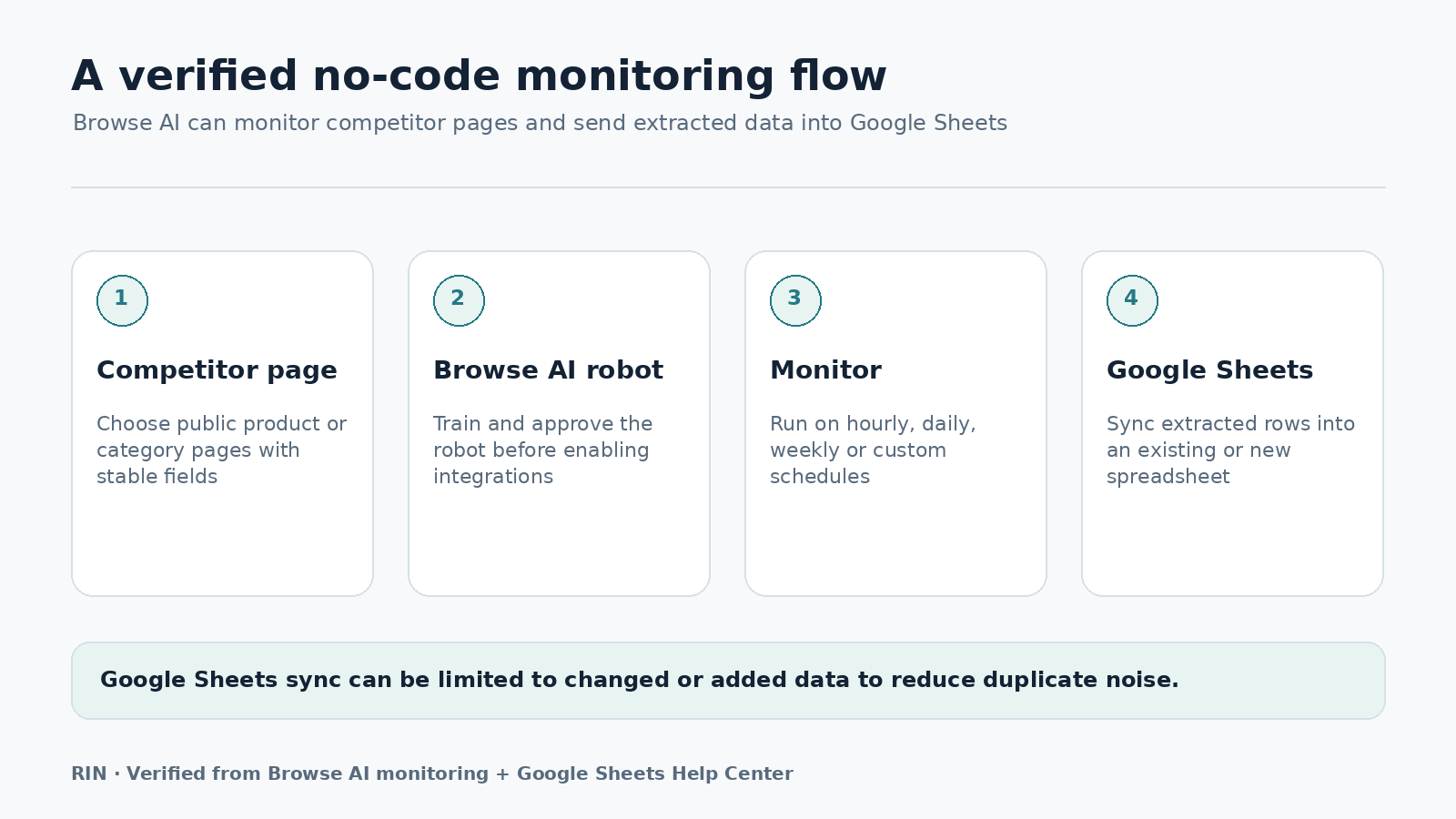
Create a new Browse AI robot and point it at the competitor page.
Browse AI uses a point-and-click workflow. Instead of writing CSS selectors or scraper code, you show the robot which data you want.
For a typical product list, capture at least:
- Product name
- Price
- Product URL
If the site displays both regular and discounted prices, capture those as separate fields rather than trying to combine them immediately. Clean data is easier to work with later in Sheets.
Run the robot once and inspect the output.
Before you automate anything, check three things:
- Are the correct products being captured?
- Are prices being stored as the correct values?
- Are the columns consistent across rows?
If the first run is messy, fix the robot now. Automating bad extraction only creates bad data faster.
Step Three: Connect the robot to Google Sheets
Once the robot has successfully extracted data, open the robot and go to its Integrate section.
Choose Google Sheets, authorize your Google account, and select either:
- an existing spreadsheet; or
- a new spreadsheet created for the integration.
Browse AI’s current documentation says an approved robot with extracted data is required before setting up the Google Sheets sync.
After connecting the sheet, run a quick test and confirm that the extracted fields arrive as the columns you expect.
A simple layout could be:
| Product | Price | Product URL | Run date |
|---|
Do not over-engineer the spreadsheet yet. Get the data flowing first.
Step Four: Add automatic monitoring
Next, add a monitor to the robot.
The monitor tells Browse AI to rerun the extraction on a schedule. This is what turns a one-time scrape into an actual competitor-price tracker.
Browse AI currently supports scheduled monitoring, and its pricing page lists an hourly minimum monitor frequency on the Free plan. Paid plans can support more frequent checks.
For most small businesses, hourly checks are unnecessary anyway.
A practical starting schedule is:
- Daily for ordinary retail products;
- Every few days for slower-moving B2B prices;
- Weekly if pricing rarely changes.
More frequent is not always better. Every run uses credits, so the useful question is not “How often can I check?” but “How quickly do I actually need to know about a price change?”
Step Five: Sync only changes if you want a cleaner sheet
If every scheduled run adds the same rows again, your spreadsheet can become noisy.
Browse AI provides an option to sync only changed or added data to Google Sheets.
Its current Google Sheets integration documentation offers three useful choices:
- changed or added data;
- only changed data;
- only added data.
For competitor-price tracking, changed or added data is usually the most useful starting point.
That way, the sheet focuses on events that matter: a new product appearing or an existing value changing.
If your goal is a complete historical snapshot at every interval, keep every run instead. The best setting depends on whether you want an event log or a full time series.
Step Six: Make Google Sheets useful
Getting prices into Sheets is only the first half of the job.
The next step is making changes obvious.
Add your own price
Create a column for your current price.
Then calculate the difference between your price and the competitor price.
For example:
=B2-C2
If column B is your price and column C is the competitor price, a positive or negative result immediately tells you the gap.
Add a percentage difference
You can also calculate the percentage gap:
=(B2-C2)/B2
Format the result as a percentage.
This is more useful than a raw dollar difference when products have very different price levels.
Flag large differences
Use conditional formatting to highlight rows where the difference crosses a threshold that matters to you.
For example:
- competitor is cheaper by a threshold that matters to you;
- competitor price dropped since the last check;
- a previously unavailable item is back in stock.
The goal is not to stare at the sheet all day. The goal is to make exceptions easy to spot.
A simple workflow for multiple competitors
You do not need to force every competitor into one robot.
For a small setup, it is often cleaner to use one robot per website and sync the results into a consistent spreadsheet structure.
For example:
Robot 1 → Competitor A
Robot 2 → Competitor B
Robot 3 → Competitor C
Then standardize columns such as:
- competitor;
- product;
- price;
- URL;
- checked_at.
This makes later analysis much easier.
Browse AI’s current free plan limits the number of websites, so monitoring more competitors may require a paid plan even if the number of robots itself is unlimited.
How much does this cost?
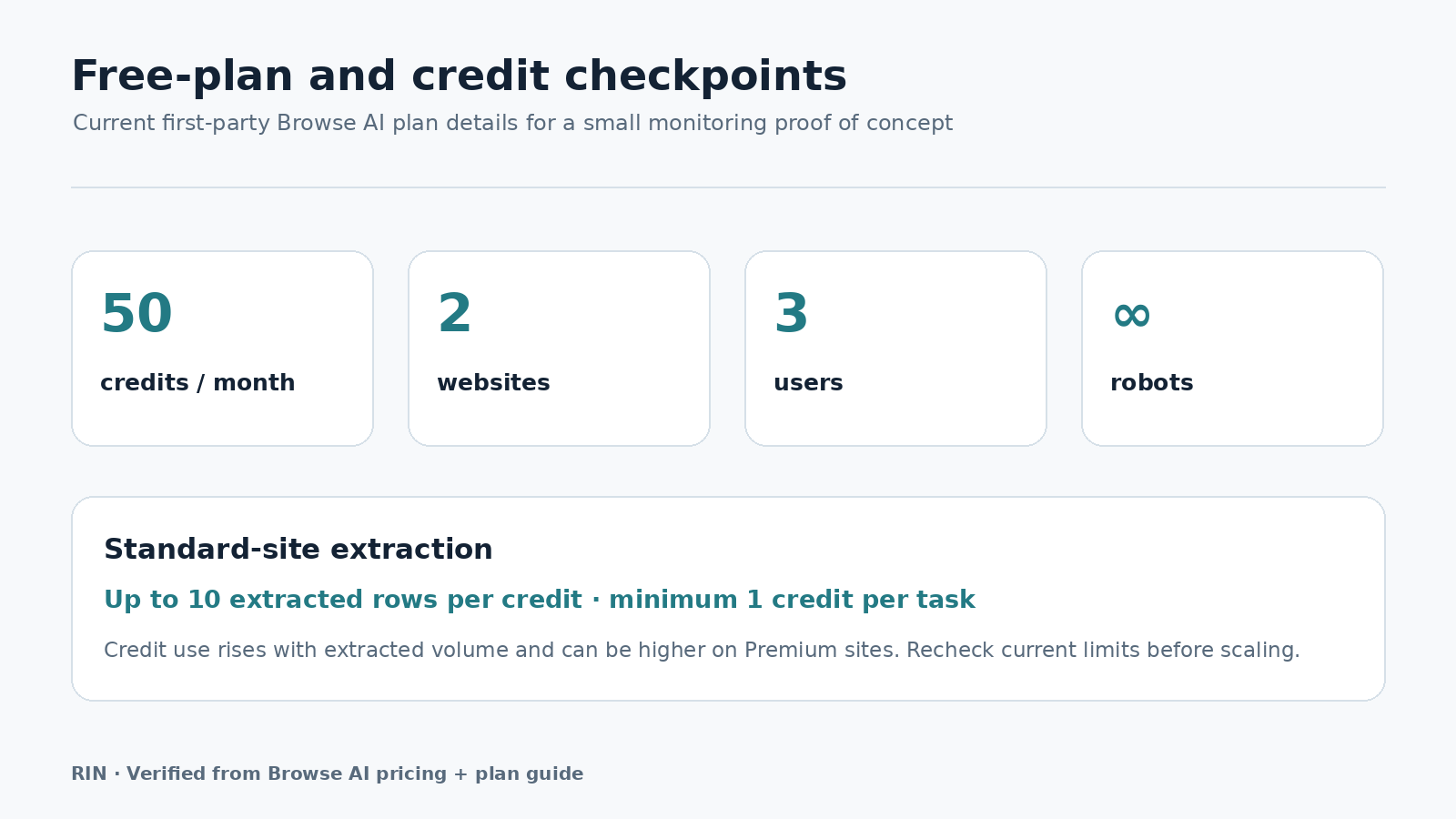
Browse AI uses credits based on the amount and cost of data extracted.
Browse AI’s credit use depends on how much data is extracted and how difficult the target site is to access. Standard and premium sites can consume credits differently, so use the current official documentation when estimating a larger workflow.
That means the cost depends on three things:
- how many rows you capture;
- how often the robot runs;
- whether the target site has a higher extraction cost.
A small daily check is very different from monitoring a large catalog every hour.
Start small, measure the real credit use for a week, then decide whether to scale.
Where this setup works well — and where it doesn’t
This workflow is a good fit when you need structured public web data on a repeat schedule without maintaining scraper code.
It is less attractive when:
- the site blocks or forbids the type of automated access you need;
- prices are only available after complicated personalized sessions;
- you need extremely high-frequency monitoring;
- you are tracking a huge catalog where a dedicated data pipeline would be more economical;
- the page layout changes so dramatically that the robot needs regular retraining.
No-code does not mean zero maintenance forever. Browse AI says its robots can adapt to many site changes, but major redesigns can still require attention.
Is Browse AI the only option?
No.
There are several categories of tools that can solve parts of this problem:
- no-code web scrapers;
- browser automation tools;
- spreadsheet import tools;
- custom scripts;
- ecommerce price-monitoring platforms.
Browse AI is attractive here because the extraction, monitoring, change detection, and Google Sheets integration can all live in one workflow.
If you need more control over scraping logic, a tool such as Octoparse or a custom Python pipeline may be a better fit. If you only need a one-time table import, this setup may be more automation than you need.
Practical considerations
Before relying on the workflow, decide who owns failed runs, how quickly price changes actually need to be detected, and what should happen when a page layout changes.
Keep a manual verification step for unusual price movements so an extraction error does not become a pricing decision.
Recheck the tool’s current plan limits and the target site’s access rules whenever you expand coverage or increase run frequency.
Final setup checklist
Before you leave the workflow running unattended, verify:
- the correct products are captured;
- prices are in consistent columns;
- Google Sheets sync works;
- the monitoring schedule matches your real business need;
- duplicate or unchanged data is handled the way you want;
- the target website’s rules allow your intended use;
- your monthly credit usage is reasonable.
Once those pieces are working, competitor-price monitoring becomes a background process instead of a recurring copy-and-paste task.
Bottom line
For a small business that wants a simple competitor-price tracker, Browse AI + Google Sheets is a practical no-code combination.
The basic workflow is straightforward:
capture the price → sync it to Sheets → schedule the robot → review only what changed.
The biggest benefit is not sophisticated analytics. It is removing the repetitive part of the job.
Start with one competitor and a handful of products. If the data stays reliable for a week, expand from there.
Product features and plan details referenced in this guide were rechecked against Browse AI’s official pricing, monitoring, credit, and Google Sheets documentation for this revision. Plans and limits can change, so verify current terms before choosing a paid plan.