
An AI chatbot can be useful for a small business for one simple reason: customers often ask the same questions over and over.
What are your opening hours? Do you ship internationally? How long does delivery take? Can I change my booking? Which product should I choose?
If those questions are already answered somewhere on your website, an AI support agent can handle many of them before a human needs to step in.
In this guide, we’ll use Tidio and its Lyro AI Agent as the example. The goal is not to build a complicated automation system. It is to get a useful chatbot onto a small-business website, train it on your own content, test it, and keep a human fallback for questions the AI should not answer.
No custom backend or chatbot code is required for the basic setup.
Quick answer: Create a Tidio account, install the chat widget, open Lyro AI Agent, add your website or FAQ pages as knowledge sources, test the answers in Playground, configure human handoff, and only then turn the agent on for visitors.
What Tidio and Lyro actually do
Tidio is a customer-support platform that includes live chat, ticketing, automation, and an AI agent called Lyro.
Lyro is different from a traditional rule-based chatbot.
A rule-based chatbot usually follows paths you define in advance:
Visitor clicks option A → show message B → ask question C.
Lyro instead uses the support information you provide as its knowledge base and generates answers to customer questions from that material.
That means you do not need to predict every possible wording a visitor might use.
For a small business, that can make setup much faster.
Tidio currently says Lyro can be added to a website without technical knowledge, trained from support content, and configured to hand conversations over when human help is needed.
Who this is for
This setup is aimed at small businesses that already have clear support policies and want to automate repetitive, low-risk questions while keeping a human available for exceptions.
It is a poor fit when policies are undocumented, answers depend heavily on account-specific context, or the chatbot would be expected to make sensitive decisions on its own.
What you need before starting
You can create the account first, but the quality of the chatbot depends heavily on the quality of your website content.
Before you turn on AI support, make sure you have clear pages covering the questions customers actually ask.
Useful content includes:
- shipping and delivery information;
- returns and refunds;
- pricing;
- opening hours;
- service areas;
- appointment rules;
- product information;
- cancellation policies;
- warranty information;
- frequently asked questions.
If your website does not clearly answer these questions, fix the content before expecting the chatbot to answer them reliably.
Think of Lyro as a customer-service employee reading your documentation. Better documentation gives it a better starting point.
Step 1: Create a Tidio account
Create your Tidio account and complete the initial project setup.
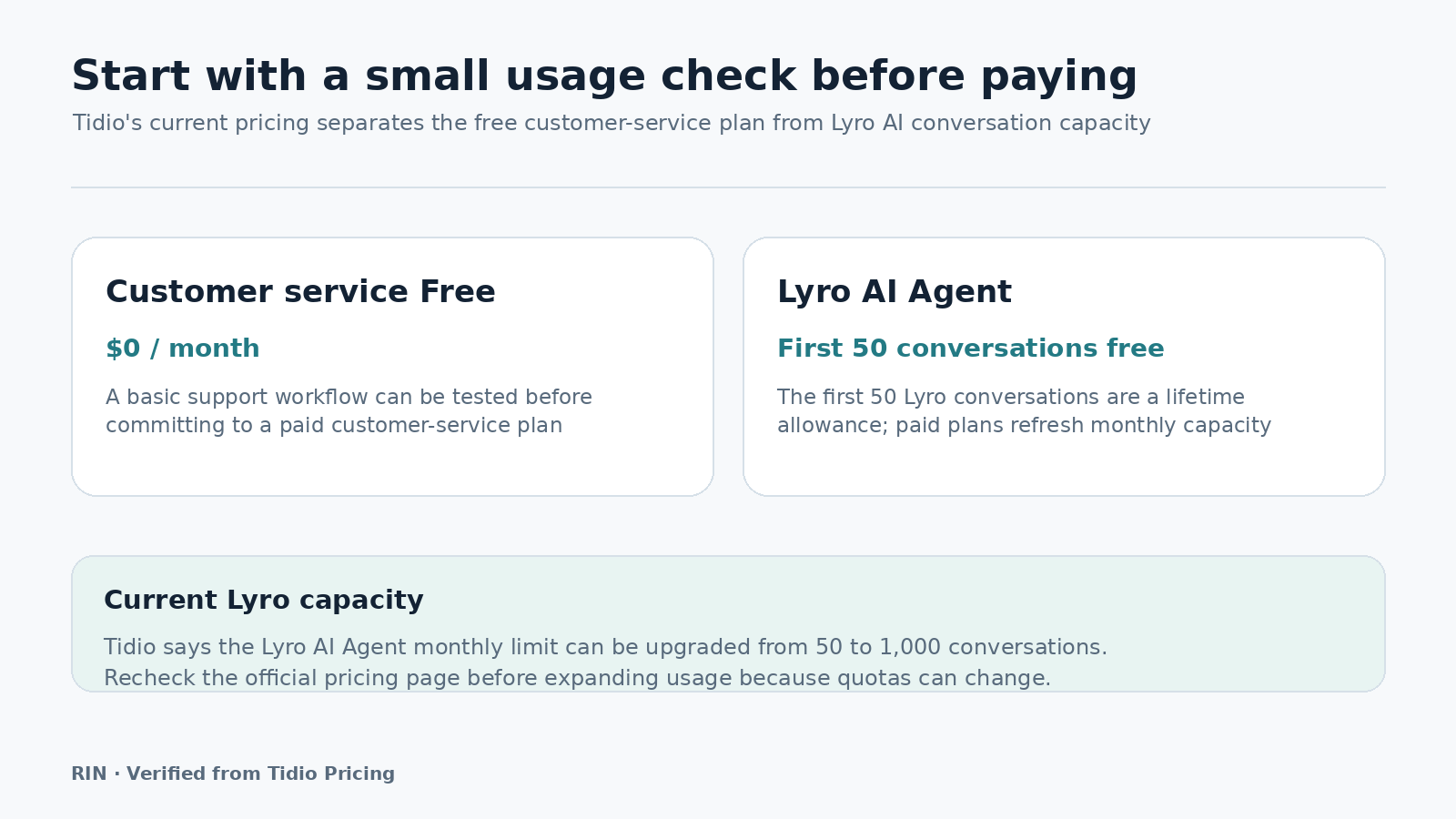
Tidio currently offers a Free customer-service plan, while paid plans add higher usage limits and additional features.
For Lyro specifically, Tidio currently advertises the first 50 Lyro conversations free for the lifetime of the account. After that, additional Lyro capacity is paid.
That makes the free allowance useful for testing a real workflow before deciding whether the automation saves enough time to justify paying for it.
Do not choose a paid plan just because the feature list looks impressive.
First prove that customers actually use the chatbot and that it answers useful questions.
Step 2: Install the Tidio chat widget
The chatbot needs a way to appear on your website.
Tidio provides two common installation methods:
- use a plugin or app for your website platform;
- insert Tidio’s JavaScript installation code into the site.
WordPress
For WordPress, Tidio provides an official plugin.
From the WordPress dashboard:
Plugins → Add Plugin → search for Tidio → Install → Activate
This is generally easier than editing theme files manually.
Other websites
If your platform does not have a convenient Tidio integration, Tidio also provides a JavaScript installation snippet.
The basic process is:
- open Tidio;
- go to Settings → Live Chat → Installation;
- copy your unique installation code;
- add it to the website before the closing
</body>tag; - save the site;
- visit the public page and confirm the widget appears.
If you use a hosted website builder, check its app marketplace first. A native integration is usually easier to maintain than manually adding code.
Step 3: Open Lyro and add your knowledge
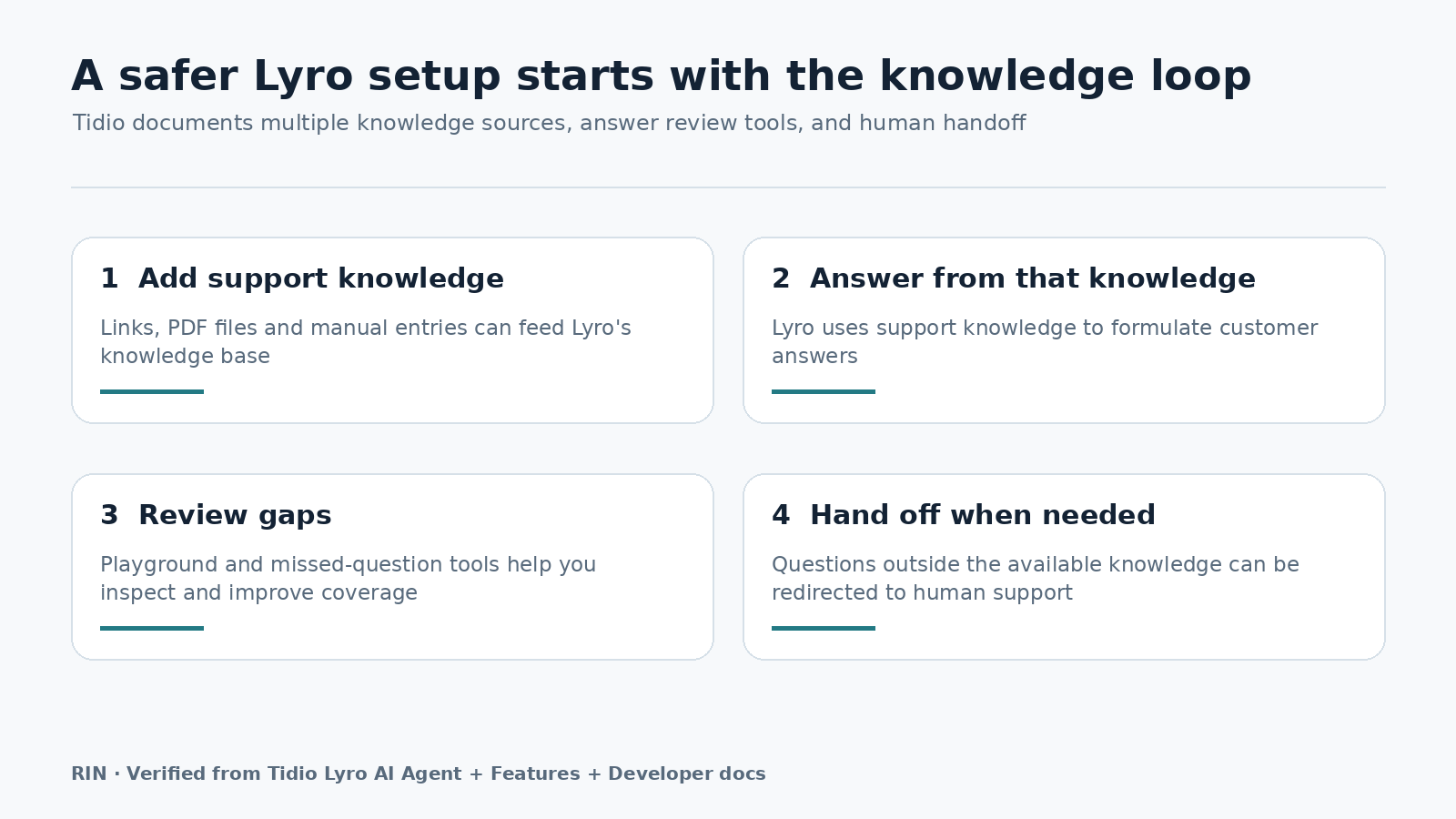
Once the widget is installed, open the Lyro AI Agent section inside Tidio.
The first important screen is the data-source or knowledge area.
Tidio currently allows Lyro to learn from website URLs and other support material.
A sensible small-business setup might include:
/faq//shipping//returns//pricing//services//contact/
Do not automatically feed the AI every page on your website.
A company blog from three years ago may contain outdated information. Promotional pages may contain vague language. Old offers may no longer apply.
Start with the pages that contain current, operational facts.
Step 4: Add missing FAQs manually
Your website may still be missing important answers.
For example, customers might frequently ask:
- “Can I pick up my order?”
- “Do you accept same-day bookings?”
- “Can I change the delivery address after ordering?”
- “Is this service available on weekends?”
If the answers are not clearly documented on the website, add them to your support material or directly to Lyro’s knowledge base where appropriate.
The goal is not to create hundreds of answers.
Start with the 10–20 questions your business receives most often.
Those usually create most of the useful automation.
Step 5: Test the chatbot before visitors see it
This is the step small businesses should not skip.
Tidio provides a Playground where you can test Lyro before going live.
Ask the chatbot the way a real customer would.
Do not only ask perfectly written questions.
Try variations such as:
- “when r u open”
- “how long shipping?”
- “can i return this”
- “need to change booking”
- “do u ship canada”
- “where my order”
Then try harder questions.
For example, if your policy says returns are allowed within 30 days, ask:
- “Can I return something after 45 days?”
- “What if I opened the package?”
- “Can I get cash instead of store credit?”
You are looking for three things:
- Does Lyro use the correct information?
- Does it avoid inventing policies you never provided?
- Does it know when the conversation should go to a human?
If an answer is weak, improve the source information before going live.
Step 6: Set up human handoff
AI should not handle every support question.
A good small-business setup is not “AI instead of humans.”
It is:
AI handles repetitive questions → humans handle exceptions.
Configure handoff for situations such as:
- refunds that require approval;
- complaints;
- unusual order problems;
- account-specific issues;
- billing disputes;
- questions not covered by your knowledge base.
Tidio allows you to configure how Lyro transfers or hands conversations over to human support.
Decide what should happen when nobody is online as well.
Depending on your workflow, that may mean creating a ticket or collecting the visitor’s contact information for follow-up.
Step 7: Choose when Lyro should answer
You do not necessarily need the AI active in every situation.
A conservative starting setup is to use Lyro for common support questions and let humans take over when needed.
Another useful setup is to rely more heavily on Lyro outside business hours.
For example:
09:00–17:00: AI answers common questions, human support available
17:00–09:00: AI handles supported questions, unresolved issues become tickets
This gives customers an immediate response without pretending the business has a human team working all night.
Step 8: Adjust the tone and guidance
The default answer style may not match your business.
Tidio provides Guidance settings that can influence how Lyro communicates.
You might instruct it to:
- keep answers short;
- avoid emojis;
- use a friendly but professional tone;
- ask for clarification when needed;
- never promise refunds;
- direct account-specific problems to support;
- link customers to the relevant policy page.
For example, a professional services business may want concise, formal answers.
A small ecommerce brand may prefer something warmer and more conversational.
The important part is consistency.
Do not use guidance to override facts. Use it to control behavior and communication style.
Step 9: Turn the AI on carefully
Once the test answers look good, enable Lyro for the website.
Do not disappear for a month and assume it is working perfectly.
For the first week, review conversations regularly.
Look for:
- unanswered questions;
- wrong interpretations;
- policies customers keep asking about;
- questions that should have gone to a human;
- pages in your knowledge base that need clarification.
Those conversations are useful business data.
If five customers ask the same question and your website does not answer it clearly, that is not only a chatbot problem. It is also a website-content problem.
A practical small-business setup
You do not need to automate everything on day one.
A simple first version could look like this:
| Question type | Who handles it |
|---|---|
| Opening hours | Lyro |
| Shipping time | Lyro |
| Return policy | Lyro |
| Product basics | Lyro |
| Appointment availability rules | Lyro |
| Order-specific problem | Human |
| Refund approval | Human |
| Complaint | Human |
| Unusual technical problem | Human |
This keeps the AI focused on low-risk, repetitive work.
What about lead generation?
A chatbot does not have to be only a support tool.
Tidio also provides automation features for lead collection and scheduling.
For example, a service business could ask:
- what service the visitor needs;
- preferred date;
- location;
- email address;
- phone number.
The chatbot can then help route the enquiry into a booking or follow-up process.
Lyro can also be paired with Guidance and other Tidio automation features for more advanced workflows.
But do not start there unless your basic question-answering setup already works.
Support automation is easier to test because the correct answers are usually known.
Verified Pricing Snapshot
Primary-source check: Tidio’s official pricing and Help Center pages were checked on September 2, 2026.
| Item | Current official position | What it means for testing |
|---|---|---|
| Customer-service Free plan | $0/month | Useful for testing a basic support workflow before paying. |
| Lyro AI Agent | First 50 conversations free for the lifetime of the project | Paid Lyro capacity is required after the one-time free quota is used. |
The practical question is whether visitors use the chatbot and whether it resolves repetitive questions accurately. Measure that before upgrading.
How to judge whether the chatbot is worth keeping
Do not judge the project by whether the widget looks impressive.
Track outcomes.
Useful measures include:
- number of AI conversations;
- percentage resolved without a human;
- number of handoffs;
- repeated unanswered topics;
- leads collected;
- support time saved;
- customer complaints caused by bad answers.
A chatbot that handles 100 conversations but creates 30 confused customers is not successful.
A chatbot that handles 40 repetitive questions accurately may already be valuable.
Practical considerations
Assign someone to review unresolved conversations, keep source policies current, and define which topics must always go to a human.
Recheck Tidio’s current limits before expanding usage because plan quotas and paid options can change independently of the chatbot setup itself.
For the first rollout, optimize for correct answers and safe handoff rather than the highest possible automation rate.
Common mistakes to avoid
Adding the chatbot before fixing your website content
If your shipping policy is vague, the AI cannot magically make it precise.
Clean up the source material first.
Feeding it outdated pages
Old pricing or old policies can create bad answers.
Only include current information.
Skipping Playground testing
Never assume the first version is ready.
Ask messy, realistic questions before launch.
Letting AI handle sensitive decisions
Refund approvals, disputes, unusual complaints, and account-specific decisions should usually have a human fallback.
Paying before measuring usage
The free allowance is valuable precisely because it lets you see whether the workflow is useful.
Treating the chatbot as a one-time setup
Review conversations and improve the knowledge base over time.
Is Tidio the right choice?
Tidio is a strong fit if you want live chat, customer-support automation, and an AI agent in one platform.
It is particularly attractive for a small business that wants a no-code setup and does not want to build its own chatbot backend.
It may be less suitable if you need:
- highly customized internal workflows;
- complete control over the underlying AI model;
- a very large support operation with unusual infrastructure requirements;
- a chatbot that must make high-risk business decisions automatically.
For those cases, a custom integration or a different support platform may make more sense.
Bottom line
A useful AI chatbot for a small business does not need to be complicated.
The basic setup is:
install Tidio → give Lyro reliable support content → test realistic questions → configure human handoff → go live → review conversations.
The most important part is not the AI itself.
It is giving the AI clear information and defining where automation should stop.
Start with common, low-risk questions. If Lyro handles those reliably, expand gradually.
That approach gives you the time-saving benefit of AI support without handing every customer interaction to automation on day one.
Product features and pricing referenced in this guide were checked against Tidio’s official pricing, Lyro, installation, and Help Center documentation in August 2026. Plans, limits, and features can change, so verify current terms before purchasing.